
Before you start
Your meeting date
The date of the annual meeting, or the special meeting where ballots are opened and counted. That is the date the calculator counts backward from.
How your association votes
Paper ballots or electronic voting. Electronic voting adds a 30-day member opt-out notice before ballots go out, so the schedule starts earlier.
Whether you might have acclamation
If candidates are likely to equal or fall short of the open seats, pick an acclamation option. The nomination notices are still scheduled, because acclamation depends on running the full nomination process.
Step 1: Choose your election type
The first card asks what kind of election you are running. Four options appear in the dropdown: Acclamation, Paper Ballots if Needed; Acclamation, Electronic Voting if Needed; Standard Election, Electronic Voting; and Standard Election, Paper Ballots. Pick the one that matches how your association votes and whether you expect a contest. The choice decides which notices land on your schedule.

Step 2: Enter your date
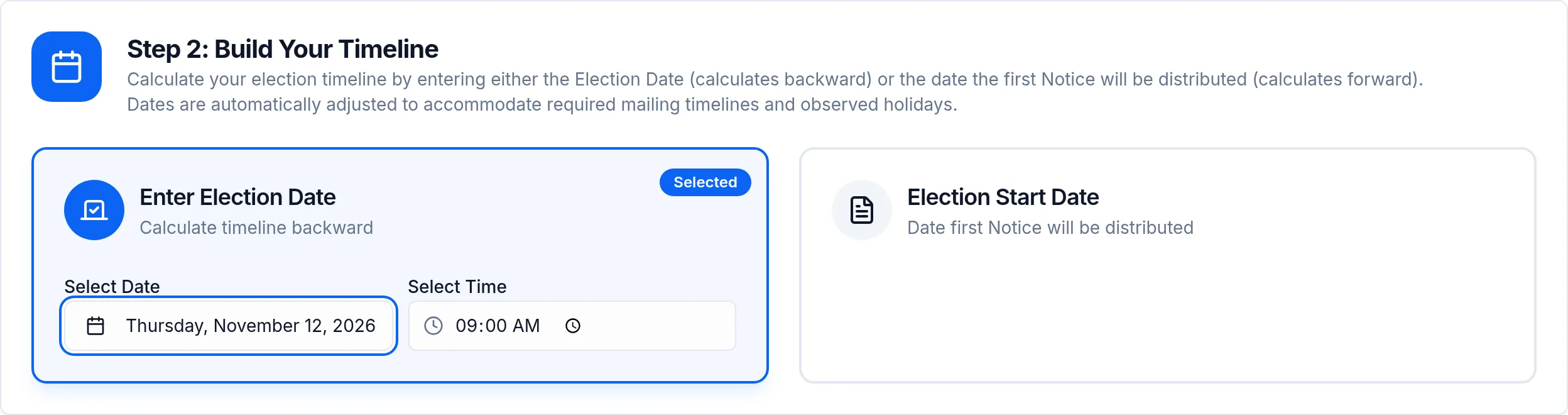
Two cards sit side by side. Enter Election Date works backward from the meeting where ballots are counted. Election Start Date works forward from the day your first notice goes out. Use whichever date your board actually knows. Pick the day in the calendar, set the time, and the timeline builds itself as you go, there is no submit button to find.
Step 3: Review the schedule
Your dates appear straight away. A summary track across the top lists every milestone in order with its date, so you can see at a glance how long each notice window is and where the pressure sits. Anything that fell on a weekend or an observed California holiday has already been moved to a business day, in the direction that keeps the statutory window its full length.

What each milestone card gives you
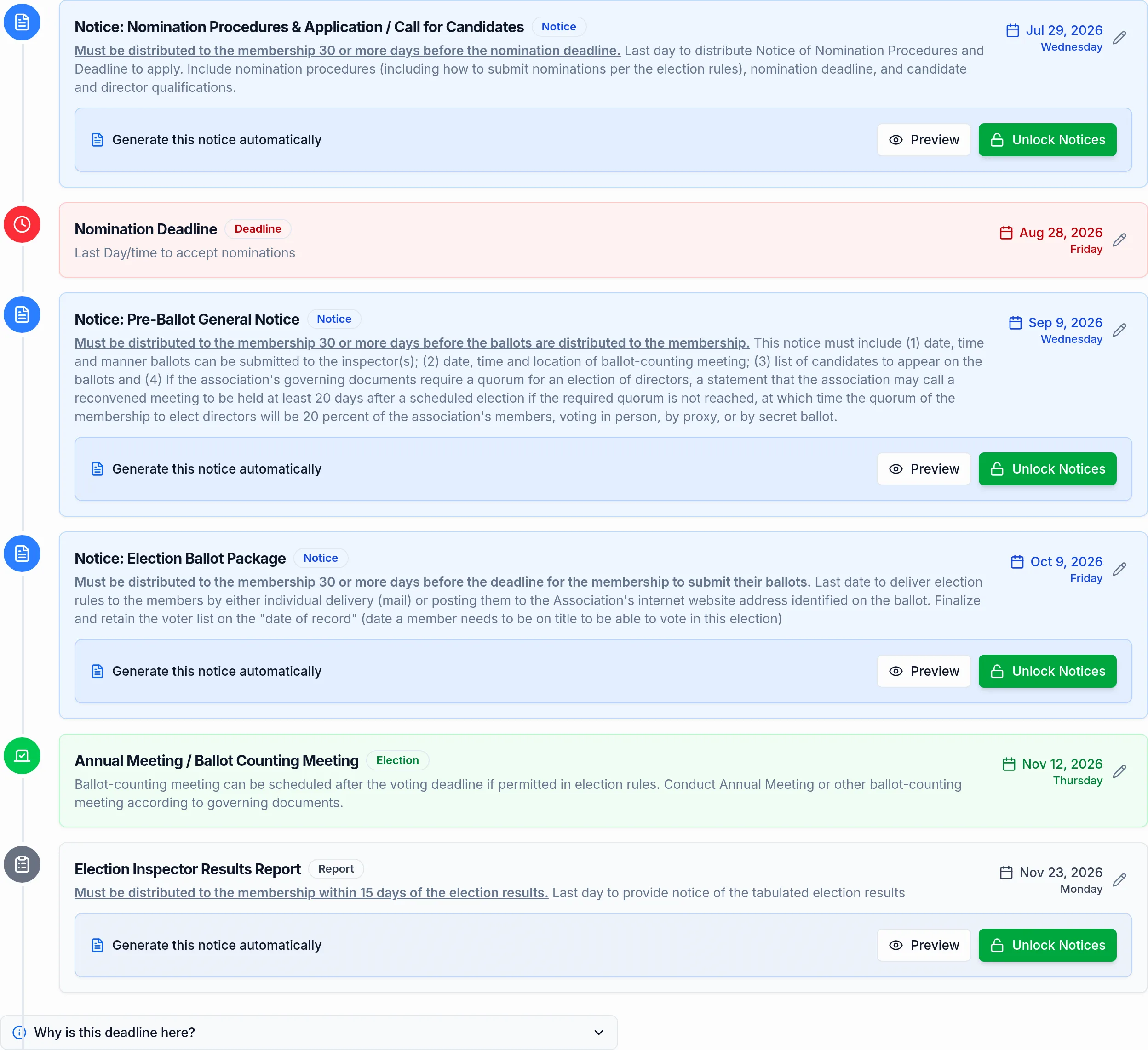
Below the summary, every milestone gets its own card: the name, the date and the day of the week, a short note on what that notice has to contain, and a Preview button that opens a sample of the document. When you are ready to produce the real one, the Unlock Notices button takes you to a free account. The Download PDF button at the top of the results saves the whole schedule.
A real example: a November 12 meeting
Standard election, paper ballots, meeting on Thursday, November 12, 2026. This is the schedule the calculator produced, and yours will shift with your own meeting date and election type.
| Date | Milestone | Why that date |
|---|---|---|
| Jul 29, 2026 | Call for Candidates and notice of nomination procedures | 30 or more days before nominations close |
| Aug 28, 2026 | Nomination deadline | Last day and time to accept nominations |
| Sep 9, 2026 | Pre-ballot general notice | 30 or more days before ballots are distributed |
| Oct 9, 2026 | Ballot package to every member | 30 or more days before the ballot return deadline |
| Nov 12, 2026 | Annual meeting and public ballot count | The date you entered, polls close at the meeting |
| Nov 23, 2026 | Results report to the membership | Within 15 days after the election |
Notice how far back the first date sits. The July start is what the 30-day nomination window plus the 30-day ballot windows add up to, and electronic voting would push it earlier still.
Tips from boards who run this every year
Run it before the board settles on a date
The first date on the schedule usually lands about three and a half months before the meeting. Seeing that first is easier than moving a meeting date later.
Treat the dates as the outer edge
Each deadline is the last compliant day, not a comfortable one. Where a notice has to sit in a mailbox, add a few days of your own.
Download the PDF and circulate it
The PDF carries every milestone with its date and the days between them, so it works as a board packet handout and as the copy your manager keeps.
Re-run it after any change
Move the meeting date by a week and every date in front of it moves with it. Nothing is saved on your behalf, so run it again after the board makes a change.
Generate the notices from the schedule
Each milestone card links to the matching notice, so the dates inside your documents match the timeline you just built instead of a date typed in twice.
Questions?
Prefer to watch it happen, or would rather ask a person? Both work.